Preview, Download, and Email an Invoice
Check the official PDF and send a published invoice to the correct customer contact.
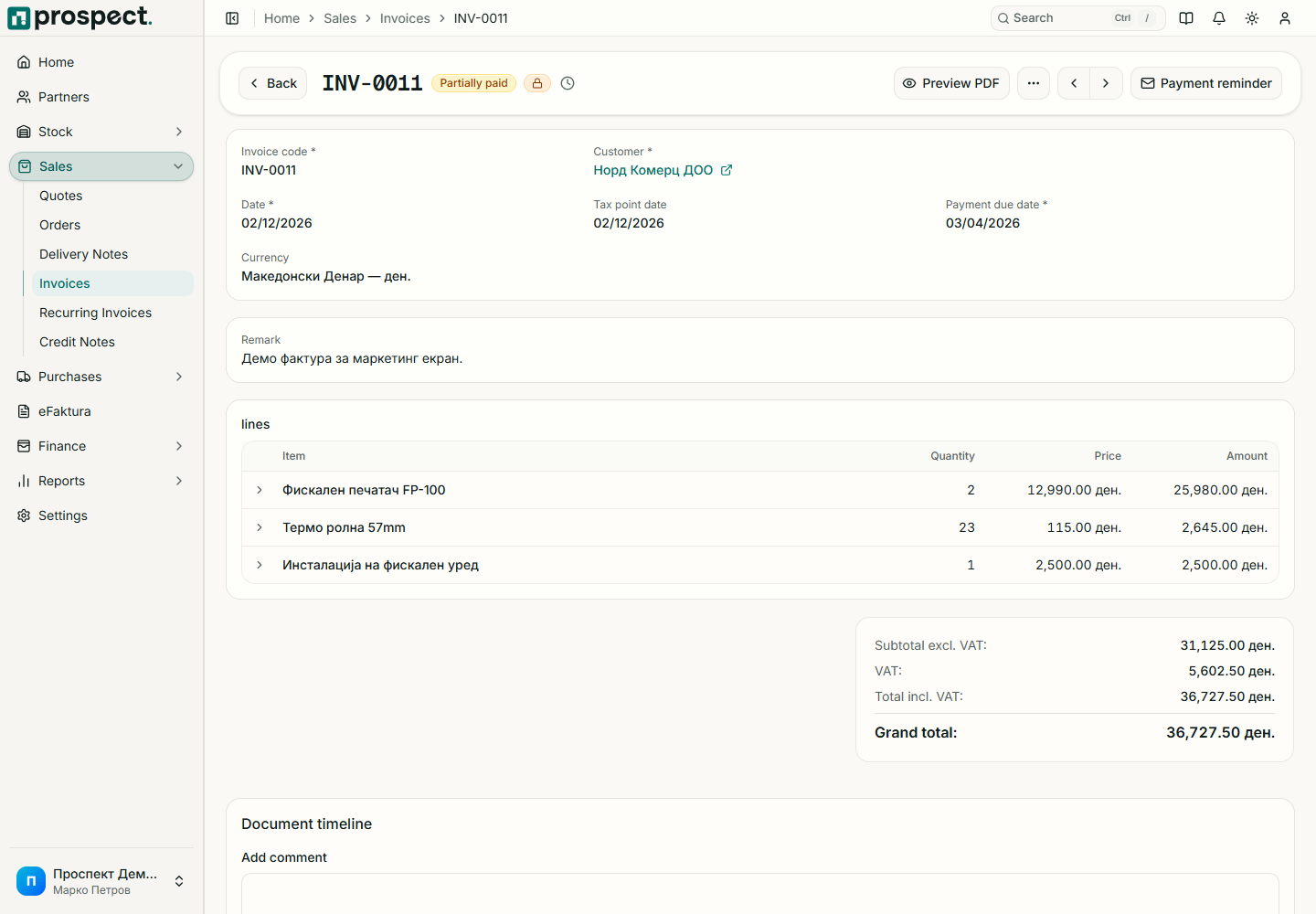
Open the published invoice detail. The PDF and email actions use the document snapshot, company identity, selected template, customer information, tax breakdown, and totals.
Open PDF Preview and verify number, dates, seller and buyer identity, bank details, line descriptions, quantities, VAT, and total.
Choose Send by email, confirm the recipient, subject, and message, and send.
Check the success result and activity timeline. If delivery fails, correct the address and retry without changing the official invoice.
Emailing does not mark the invoice as paid and does not by itself submit eFaktura. Those are separate workflows. Do not send a draft as an official invoice. When a published invoice is wrong, use a permitted cancellation or credit-note process; do not edit a downloaded PDF.
For branded output, see PDF templates. For electronic submission, see eFaktura outbox.